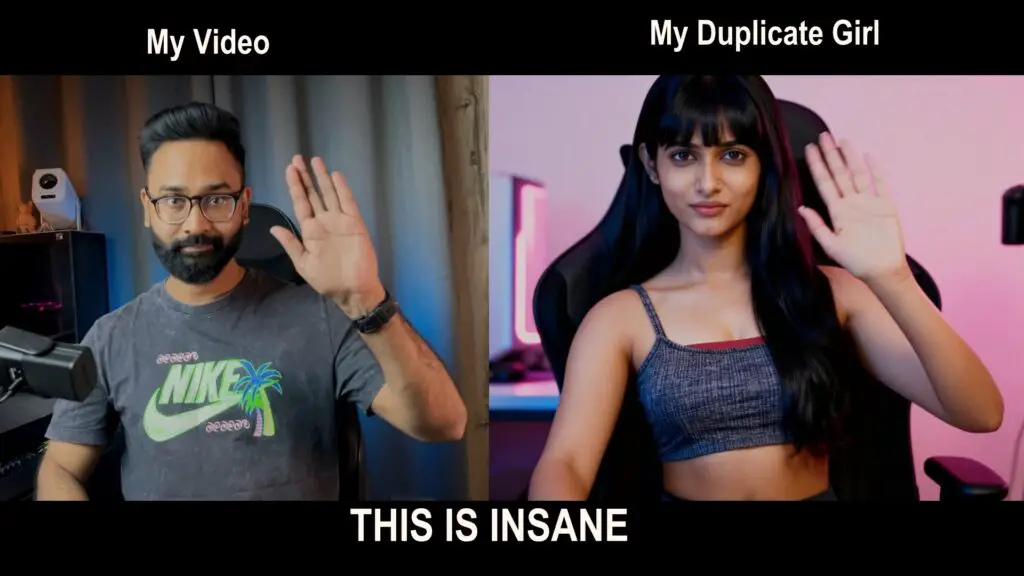
AI tools are becoming more impressive every day. Wan 2.2 Animate is one such tool that seems like it belongs in a sci-fi movie. You can take a single photo and make it move, blink, smile, or even dance by using motion from any reference video. It sounds unbelievable, but that’s what this tool does. In this guide, I’ll explain what Wan 2.2 Animate is, how it works, and how you can create your own AI-powered videos with it.
What is Wan 2.2 Animate?
Wan 2.2 Animate is an AI animation tool that allows you to:
- Swap a character in a video with your own image
- Copy facial expressions, gestures, and body movements from a reference video
- Generate smooth, realistic animations from a single picture
Unlike traditional animation, you don’t need hours of editing or costly software. Just upload a photo, choose a reference video, and the AI takes care of the rest.
How Does It Work?
The process uses something called motion transfer. Here’s how it works:
- Upload an image: This could be a portrait, character design, or even a cartoon.
- Choose a reference video: The AI looks at the expressions and movements in this video.
- AI generates the output: Your image now moves like the character in the video.
So if your reference clip shows someone dancing, your still photo will dance too!
How to Use Wan 2.2 Animate (Step-by-Step Guide)
Getting started with Wan 2.2 Animate is easier than you think. Just follow these steps:
Step 1: Prepare Your Image
Choose a clear, high-resolution photo of the character or person you want to animate. You can use any image generation model like Google Gemini, Midjourney, Seedream, or whatever you like.
Make sure the image looks like the first frame of your reference video.
Ensure the face is visible and not too blurry. A neutral expression works best.
Step 2: Choose a Reference Video
Pick a short clip; 10 to 20 seconds is ideal. (Do not exceed more than 30 seconds).
The reference video should show the motions or expressions you want your photo to copy, like dancing, smiling, or acting.
The clearer the video, the better the final results.
Step 3: Access Wan2.2 Animate
Go to any of these links: (These sites might be busy and take some time to load)
- Wan 2.2 Animate interactive demo
- Wan 2.2 on Hugging Face
- Wan 2.2 Animate Hugging Face – Link 2
- Wan AI Official Site (Less busy)
Try and check which link is less busy.
Once the page is loaded, upload your character image and reference video.
There are two models to select:
Wan 2.2 animate move: – It will copy the motion from your reference video to your photo and create a similar video.
Wan 2.2 animate mix: It will swap the character in your video with the character in the image.

Step 4: Click “Generate video,” and you will find your AI video on the right side. It might take 20-30 minutes to generate the video since there is a huge traffic on the website.
Watch Video Tutorial:
Step 5: Download Your Animated Video
- Once you finish, preview your output.
- If it looks good, download the video.
- If it doesn’t, you can try another photo or reference clip for better results.
Quick Tips for Better Results
- Use matching angles between your photo and the reference video, such as both facing forward.
- Avoid images with too many obstructions, like sunglasses or heavy shadows.
- Try different motions. Some expressions look more natural than others.
Why is Wan 2.2 Animate So Popular?
- It is easy to use, with no technical knowledge required.
- It delivers fast results; videos are generated in minutes.
- It offers creative freedom, making it great for short films, reels, memes, or storytelling.
- It produces professional quality; outputs look surprisingly smooth and natural.
Where Can You Use It?
Here are some fun ways to try Wan 2.2 Animate:
- Content creation: Make eye-catching reels, shorts, and TikToks.
- Storytelling: Animate characters for short films.
- Art and design: Bring digital art or character concepts to life.
- Fun experiments: Swap your friend’s photo into a viral dance clip.
Final Thoughts
Wan 2.2 Animate isn’t just another AI gimmick. It offers a look into the future of video creation. Whether you’re a content creator seeking new ideas or just want to have fun animating your photos, this tool is worth a try.
The best part? You don’t need professional editing skills. Just one image, one video, and let AI work its magic.
Have you tried Wan 2.2 Animate yet? Share your thoughts in the comments below. I’d love to hear how you’d use it.
Check this:
FAQs about Wan 2.2 animate
Absolutely! That is the key feature. All you need is a reference video and one image. The motion, facial expressions, and gestures from the video will be copied by the AI and applied to your picture.
Clear, high-resolution portraits with the face visible are ideal for it. Cartoons, sketches, or low-quality photos can be tried, but the results might appear warped or less realistic.
Most online demos and workflows can create short videos (about 5–20 seconds) since longer animations take more computational resources. You can have multiple clips sewn together if you need a longer animation.
It’s free on some platforms, such as Hugging Face demos, but with queues or reduced quality. For high-resolution and quicker outputs, you may require a local environment with a powerful GPU or pay-for-use services like Higgsfield.
Yes! That’s character swap. Wan 2.2 Animate Mix model can swap the subject in a video with your uploaded image, yet maintain the original video’s movements and background